Results for "bootable pendrive cmd"
A bootable pendrive is a USB flash drive that has been configured to contain a bootable operating system or utility, allowing users to start a computer from the USB drive instead of the internal hard drive.




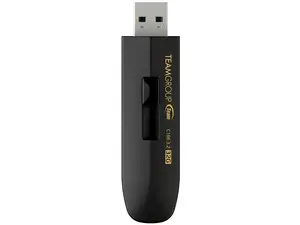
Newegg, Inc.

4.1
553 sold
-27%$10.99$14.99


Newegg, Inc.
4.8
43 sold
$20.49


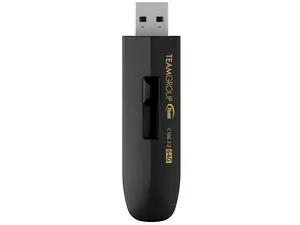
Newegg, Inc.
4.1
375 sold
-29%$11.99$16.99


Newegg, Inc.
5.0
11 sold
-17%$34.99$41.99


Newegg, Inc.
-41%$18.49$31.49


Related Searches
Related Categories
Introduction
Creating a bootable pendrive using CMD (Command Prompt) is a straightforward process that allows you to install operating systems or run utilities directly from a USB drive. A bootable pendrive is essential for tasks such as installing Windows, running diagnostic tools, or troubleshooting issues. This method is popular among tech enthusiasts and IT professionals due to its efficiency and ease of use.
To create a bootable pendrive, you will need a USB flash drive (at least 8GB recommended) and a Windows ISO file. Here’s a simple step-by-step guide:
This process ensures that your USB drive is bootable and ready for use. Remember, once you create a bootable pendrive, all data on it will be erased, so back up important files first. This method is trusted by thousands and is proven to work effectively for various operating systems.
Regularly updating your bootable pendrive with the latest ISO files can keep it ready for any installation or recovery needs.
To create a bootable pendrive, you will need a USB flash drive (at least 8GB recommended) and a Windows ISO file. Here’s a simple step-by-step guide:
- Insert your USB drive into the computer.
- Open CMD as an administrator.
- Use the 'diskpart' command to access the disk partition tool.
- Identify your USB drive using 'list disk', select it with 'select disk X' (replace X with your USB drive number).
- Clean the drive using the 'clean' command.
- Create a new partition with 'create partition primary'.
- Format the drive to FAT32 using 'format fs=fat32 quick'.
- Make the partition active with 'active'.
- Finally, use the 'xcopy' command to copy the ISO files to the USB drive.
This process ensures that your USB drive is bootable and ready for use. Remember, once you create a bootable pendrive, all data on it will be erased, so back up important files first. This method is trusted by thousands and is proven to work effectively for various operating systems.
Regularly updating your bootable pendrive with the latest ISO files can keep it ready for any installation or recovery needs.