- TikTok Shop
- Computers & Office Equipment
- Desktop & Laptop Components
- Monitors
- New 180Hz Curved Gaming Monitor for PS5, Xbox & PC 1ms FHD IPS Display | Ultra Smooth FPS, Low Motion Blur, FreeSync


4.5
19 global reviews
5
13
4
4
3
1
2
0
1
1
Photos from reviews


t**a


m**1
Sort by
Recommended
Filter by
All
Displaying 19 of 19 reviews
Reset filters
t**a
·
Verified purchase
US
Works smooth great first monitor 🔥
Item:
24inch 100hz, curved 2026-03-10
m**1
·
Verified purchase
US
got it love it go get u one now
Item:
24inch 180hz, curved 2026-03-09

t**e **
·
Verified purchase
US
easy to set up, came in brand new quality, great monitor for the price
Item:
24inch 180hz, Face 2026-03-15

E**n P**k
·
Verified purchase
US
Works really good with Xbox and is super smooth and responsive
Item:
24inch 180hz, curved 2026-03-11

𝑭**🪵
·
Verified purchase
US
Didn’t come with power cord or stand and denied my refund claim
Item:
22inch 75hz, Face 2026-03-11

🧿**a
·
Verified purchase
US
Fast shipping, fits perfect on my desk thank you.
Item:
24inch 180hz, curved 2026-03-19

C**
·
Verified purchase
US
Really good, very happy with this product
Item:
24inch 180hz, Face 2026-03-15
5**e
·
Verified purchase
US
Its just like the picture its good quality too
Item:
24inch 180hz, curved 2026-03-12

c**n p**e
·
Verified purchase
US
Good monitor 1080hp cuz it didn’t say specifics
Item:
24inch 180hz, curved 2026-03-12

K** H**r
·
Verified purchase
US
This is Very good product 😄❤️
Item:
24inch 180hz, curved 2026-02-19

D**l
·
Verified purchase
US
Estoy probando apenas
Item:
24inch 180hz, curved 2026-03-16

** ** ** ** **
·
Verified purchase
US
It works amazingly
Item:
24inch 180hz, curved 2026-03-11

✝**y
·
Verified purchase
US
Item:
24inch 180hz, curved 2026-03-19

h**y
·
Verified purchase
US
Item:
24inch 180hz, curved 2026-03-11

F**_
·
Verified purchase
US
Item:
24inch 180hz, curved 2026-03-09
s**0
·
Verified purchase
US
Item:
24inch 180hz, curved 2026-03-08

😈**😈
·
Verified purchase
US
Item:
22inch 75hz, Face 2026-03-04

s**6
·
Verified purchase
US
Item:
22inch 75hz, Face 2026-03-03

k**8
·
Verified purchase
US
Item:
24inch 180hz, Face 2026-02-25
About this product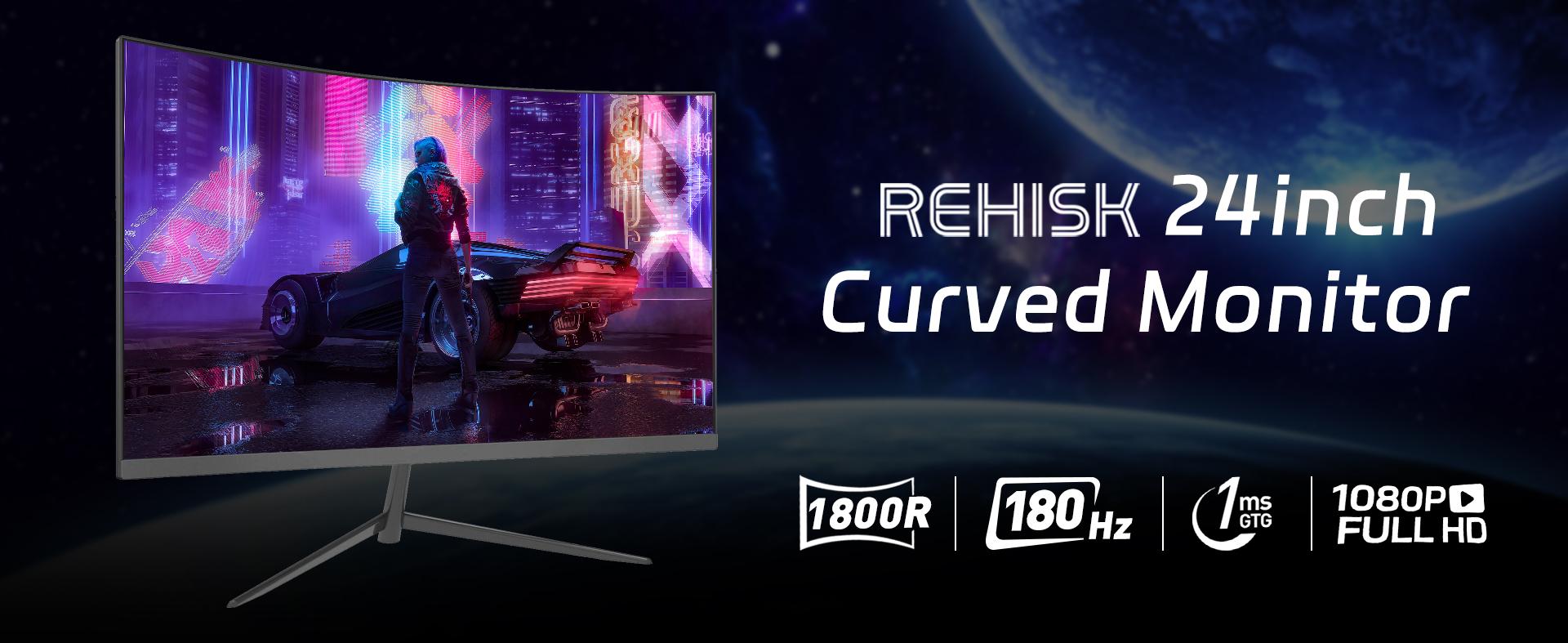
Product description
24” Curved 180Hz Gaming Monitor
Built for Smooth, Competitive Play
Experience ultra-fluid motion, immersive visuals, and serious gaming performance — all in one sleek curved display.
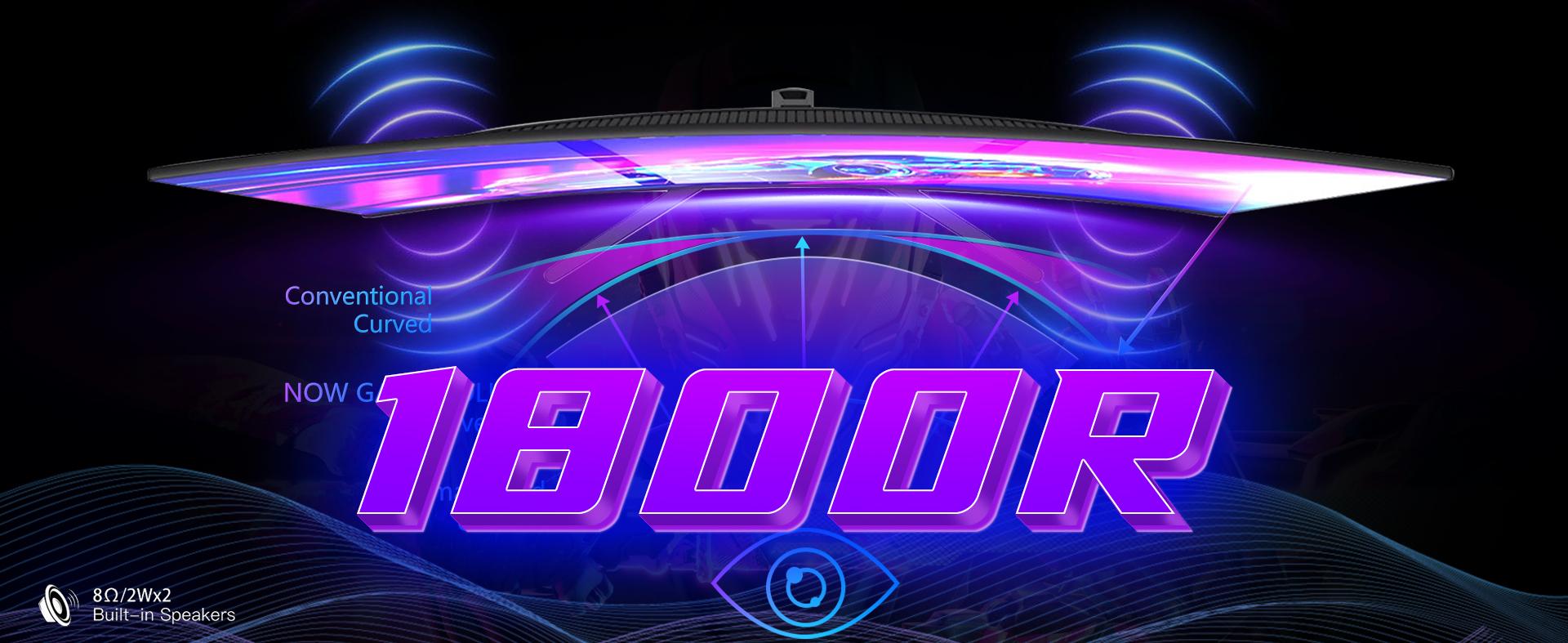
Immersive Curved Viewing
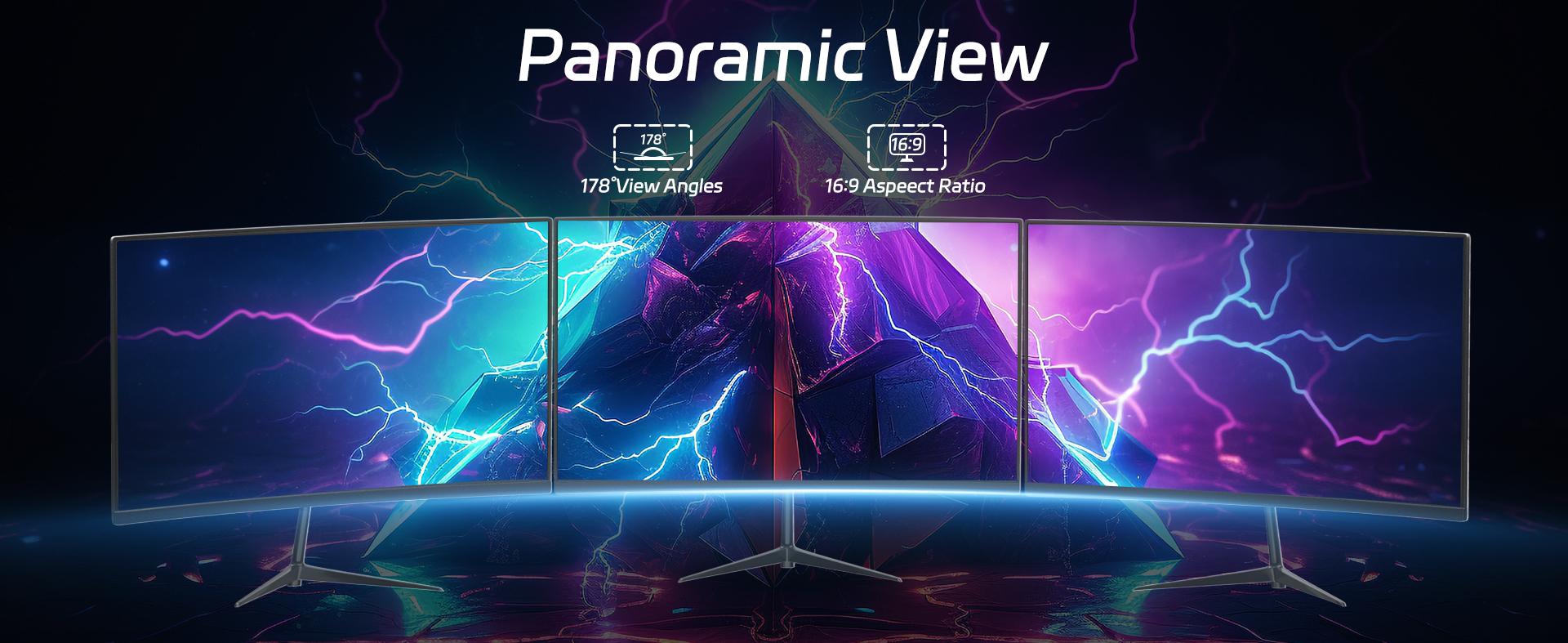
The 1800R curved screen wraps around your field of view, pulling you deeper into the action. Whether you're gaming, streaming, or working, the curve reduces eye strain and keeps you focused.
24” Full HD (1920×1080)
Wider, more natural viewing angle
Perfect for FPS, racing, and esports titles
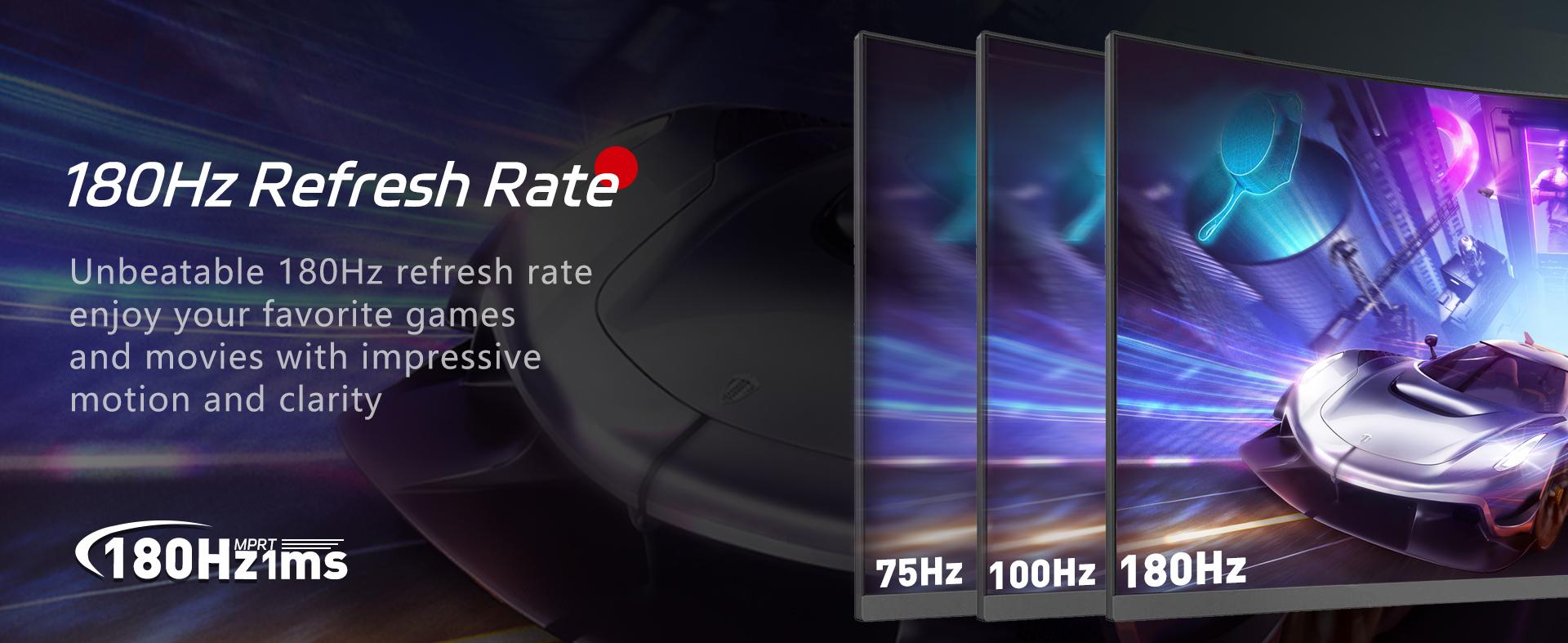
Ultra-Smooth 180Hz Performance
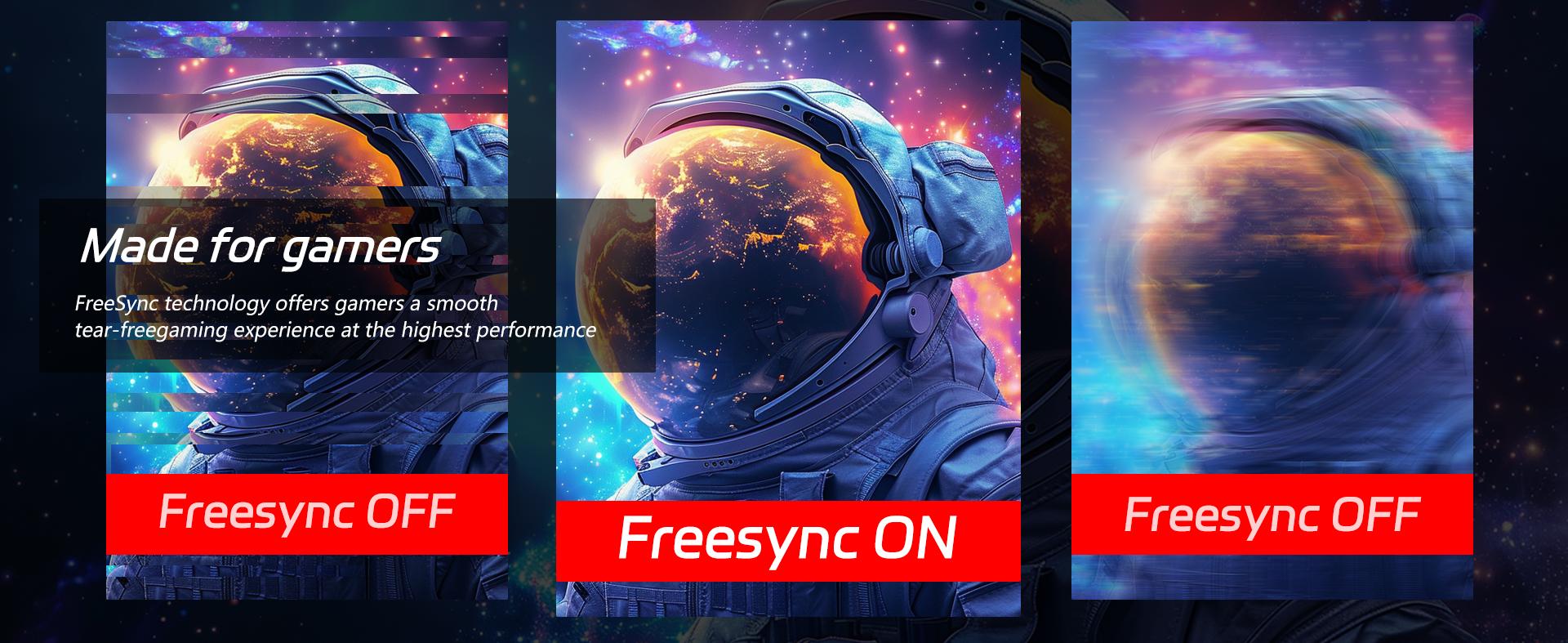
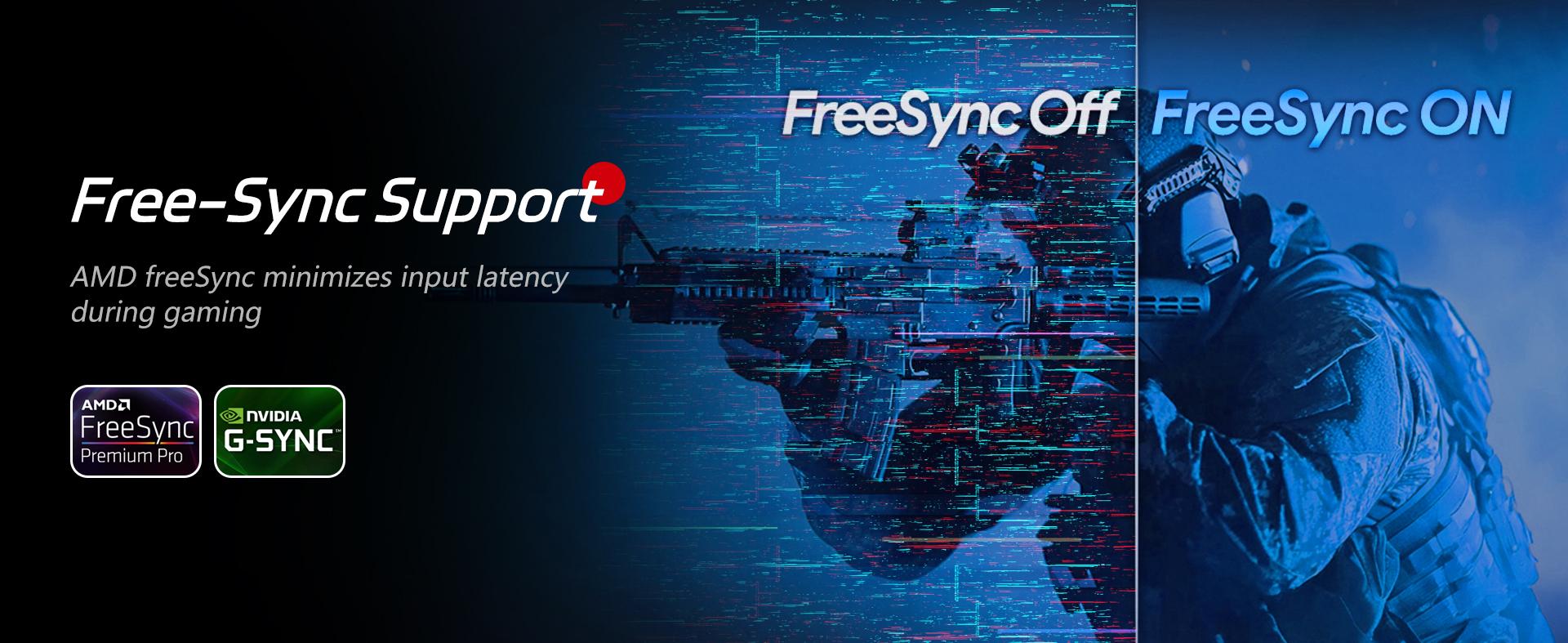
Say goodbye to blur and screen tearing.
With a 180Hz refresh rate and 1ms response time, every frame stays sharp and fluid — even during fast camera movement and high-speed gameplay.
Smoother motion than standard 60Hz/75Hz monitors
Ideal for competitive gaming
AMD FreeSync supported for tear-free visuals
IPS Color & Wide Viewing Angles
Enjoy vivid colors and consistent clarity from almost any angle.
IPS panel technology
178° wide viewing angle
Near-borderless design for a modern setup
VESA 75×75mm mount support
Easy Connectivity
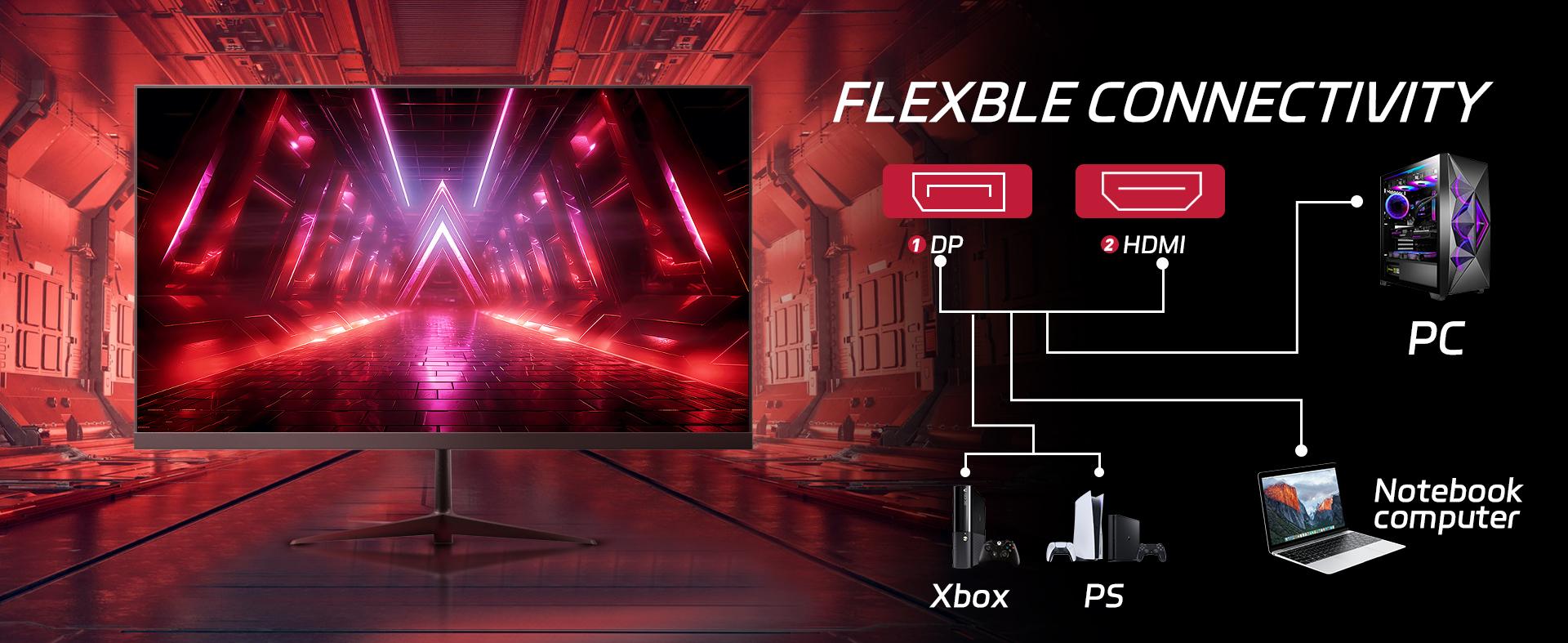
Plug in and play with multiple devices.
HDMI + DisplayPort inputs
Works with PC, laptop, and gaming consoles
Built-in speakers for basic audio
In the box:
DisplayPort cable, HDMI cable, power adapter, user manual
How to Enable 180Hz (Important)
To run at 180Hz, your setup must include:
• A PC graphics card that supports 180Hz
• DisplayPort (recommended) or HDMI 2.0/2.1 cable
• Refresh rate set correctly in system settings
Otherwise, the monitor may default to 60Hz or 120Hz.
Windows Setup
Windows 10/11:
Desktop Right-click Display Settings Advanced Display Select Monitor Choose 180Hz
Graphics Card Panel
NVIDIA:
NVIDIA Control Panel Change Resolution Select 1920×1080 180Hz Apply
AMD:
AMD Software Display Set Refresh Rate to 180Hz
Monitor Menu (OSD)
Some models require enabling high refresh rate in the monitor menu:
Menu Settings / Gaming High Refresh Rate / 180Hz Mode On
Console Users
PS5 & Xbox Series X/S support up to 120Hz (console limit).
180Hz is available on PC only.
FAQ
Why is my monitor showing only 60Hz?
You may be using the wrong cable, or refresh rate isn’t set in system settings.
Does 180Hz make a difference?
Yes — smoother motion, less blur, faster reaction time in games.
Is 180Hz safe?
Yes. 180Hz is the monitor’s native supported refresh rate.
Final Tip
For the best experience:
Use DisplayPort + Set 180Hz in Windows & GPU settings + Enable high refresh rate in monitor menu.
View more
$108.69
$32.88 shipping on this order
New 180Hz Curved Gaming Monitor for PS5, Xbox & PC 1ms FHD IPS Display | Ultra Smooth FPS, Low Motion Blur, FreeSync
4.5(19)
152 sold
Screen Size:22inch 75hz
22inch 75hz 24inch 100hz
 24inch 180hz
Model:Face
Face
curved
Quantity:
Coupon center
Log in to check your coupons
View and claim any available offers once you're logged in.
Shipping & returns
Shipping & delivery
Many items qualify for free shipping or become eligible once the order threshold is met.
Returns made easy
Most items are eligible for free returns within 30 days of delivery for a refund. Some items, including ingestibles, hygiene products, and pre-owned goods, are non-returnable. Final sale items cannot be returned or replaced.
About this shop

Neo gamer
4.5
3392 Sold
2.6K+ Followers
100%24h response rate
36%Ships within 2 days
85%Positive feedback
Visit
Shop review


Explore more from Neo gamer


